
NotebookLM: how to chat with company documents instead of searching forever
Google's NotebookLM turns company PDFs, manuals and procedures into an assistant you can question in natural language. Here is how to use it in practice and where its limits begin.
Practical guide
NotebookLM + Google Workspace
What is new
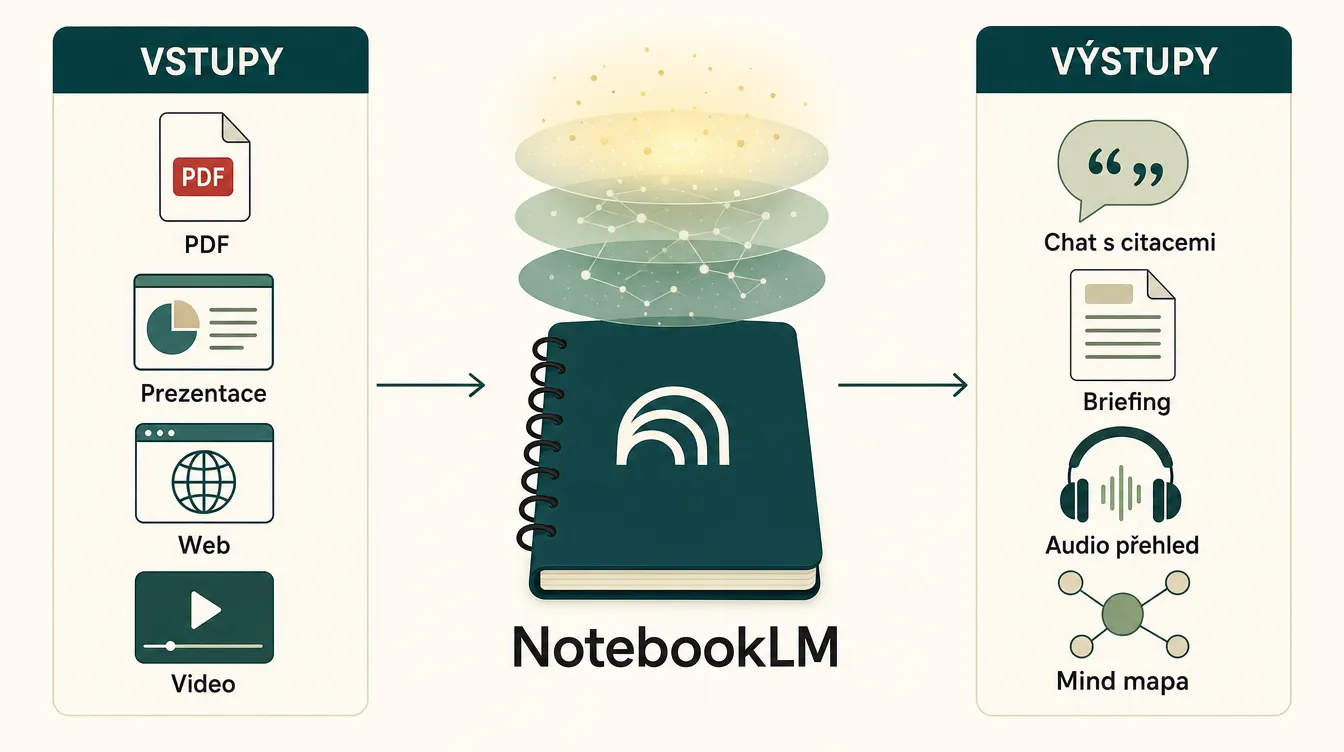
NotebookLM is a Google AI tool that has grown from a student helper into a full platform for companies. The principle is simple: upload documents such as PDFs, presentations, websites, videos and audio recordings, and NotebookLM works with them like a well-informed colleague. You can ask questions, request summaries, create a podcast or generate a mind map, and every answer remains grounded in the sources you provided.
The key difference from ChatGPT or Claude is that NotebookLM does not answer from the internet or general training data. It works only with what you upload, and every response shows the exact source and passage behind the information. That matters for companies that need answers based on their own processes rather than a model's general knowledge.
NotebookLM Plus, available through Google Workspace or Google One AI Premium, also adds team sharing, higher limits and control over who can access each notebook.
The best part
NotebookLM's strength comes from four things:
- Answers from your sources. If the information is not present in the documents you uploaded, NotebookLM says so. There are no invented citations and less room for confident answers that do not reflect company reality. For an organisation that pays for wrong answers in time or money, this is a crucial difference.
- Citations for every answer. One click takes you to the precise section of the document the model used. Verifying an answer takes seconds instead of searching through a PDF.
- Several formats from the same sources. You can turn uploaded documents into a written summary called a Briefing Doc, an Audio Overview presented as a podcast by two AI hosts, a mind map, a study guide with questions or a timeline of events. The data stays the same while the output adapts to the person using it.
- Limits that scale with the company. The free version handles around 50 sources per notebook. The Plus version supports hundreds, while each individual source can contain hundreds of thousands of words. That is more than enough for most company knowledge bases.
One important detail: Google states that NotebookLM does not use uploaded data to train its models. The Workspace version receives enterprise-level protection, and the data stays within the company tenant under the same agreement as other Workspace services.
Who it is for
NotebookLM makes the most sense wherever people repeatedly search through a large amount of company content:
- Internal processes and onboarding. HR uploads policies, manuals and the internal wiki. A new colleague asks questions in natural language instead of searching through a 200-page handbook.
- Customer support. The support team has a notebook containing product manuals, FAQs and ticket history. An agent can find an answer in seconds during a call.
- Legal and compliance. The legal team uploads contracts, regulations and internal policies. Instead of searching an 80-page document for the right clause, it asks a specific question.
- Consultants and advisers. During an audit or project, client documents go into an isolated notebook. The team questions them and extracts the important points for a report.
- Learning and training. Uploaded documentation combined with a generated Audio Overview becomes training that people can listen to on their way to work.
NotebookLM is less useful for individuals who do not have a stable set of sources and need a different context for every question. ChatGPT or Claude are better suited to that work. NotebookLM excels precisely where the sources repeat and a team returns to them often.
How to use it in practice
Deploying NotebookLM in a company involves three practical steps.
Choose the first area based on pain. Find the team that loses the most time searching documents. That is often HR for onboarding, customer support for manuals or project teams for specifications and meeting notes. Start with one concrete problem, such as: "A new junior employee spends three weeks asking colleagues questions that are answered in a manual nobody reads."
Build the first notebook from sources people actually use. Do not upload everything. Choose ten to thirty documents that people genuinely need in that area. A smaller number of relevant sources gives better answers than an overloaded notebook containing everything since 2018. Supported formats include PDFs, Google Docs, Slides, websites by URL, YouTube videos whose transcripts become sources, and audio recordings.
Set up sharing and test it with real questions. In the Plus version, invite the team with viewer or editor roles. Ask five people to submit real questions from their work and check whether NotebookLM returns useful answers with citations. If it does not, the issue is usually the quality of the sources: either a document is missing or the information is out of date. In this way, NotebookLM also reveals gaps in your documentation.
A useful first step for every notebook is to generate a Briefing Doc and an Audio Overview. The Briefing Doc gives the team a quick orientation, while the audio version provides a short explanation of the topic for new colleagues to listen to on their commute.
Practical example
A 20-person consulting firm runs three or four audits every month. For each one, it receives a bundle of client documents: internal procedures, contracts, annual reports and technical documentation. At the beginning of an audit, a consultant creates a new NotebookLM notebook and uploads the 50 to 100 documents provided by the client.
Instead of spending three days searching PDFs to understand the client's invoice approval process, the consultant asks directly: "What is the approval path for an invoice above CZK 100,000 according to the internal policy?" NotebookLM answers and points to the exact paragraph it used. Within two days, the consultant works through every key topic, generates a briefing for the client and transfers the relevant citations into the report. An audit that once required a week of document searching becomes three days of analytical work.
At the end of the project, the consultant archives or deletes the notebook, giving the client confidence that its data is not being used for anything beyond that audit.
Recommended tools
- NotebookLM Free for testing, small teams and personal use. It offers a few dozen sources per notebook and daily limits on chat and Audio Overviews. That is enough to understand whether moving to Plus makes sense.
- NotebookLM Plus through Google One AI Premium or Google Workspace. It provides much higher limits, role-based sharing, output-style customisation and access control. It is the standard choice for company deployment.
- Google Drive and Workspace for direct document imports, user identity and sharing within the company tenant. If you already use Workspace, this is the smoothest integration path.
- Audio Overview for generating a short podcast from the sources. It is ideal for sharing context with a team that does not have time to read.
- Mind Map for a visual overview that helps visual thinkers and people creating training materials.
NotebookLM is a good place for a company to begin working with its own documents. If you need to go further by building custom agents, connecting AI to internal systems or orchestrating several tools through Markdown files in Obsidian, Claude Code or Codex, that is a separate topic. NotebookLM has the lowest barrier in this stack: there is no programming, only uploading and asking.
Summary
NotebookLM is currently the simplest way to turn a pile of company documents into a useful knowledge base that people can question in natural language. Its key value is not that it is "another chatbot," but that it answers from your sources and shows where every answer came from.
Start with a small notebook in one area where the team loses the most time searching, test it with real questions and only then expand. If people use it in their day-to-day work, move to Plus and deploy it across departments. If they do not, the problem is usually not the tool but the quality of the uploaded sources.
NotebookLM will not replace every AI tool. It can, however, replace many of the hours people spend paging through documents and looking for answers that someone wrote long ago but nobody else can find.
Sources
- NotebookLM official site (Google) — product site, feature overview and plan comparison.
- NotebookLM Plus and Google One AI Premium (Google blog) — details of the Plus version, limits and Workspace integration.
- NotebookLM Help Center (Google) — official documentation, supported formats and privacy policy.
- NotebookLM Audio Overviews (Google blog) — description of the audio feature and its uses.
- NotebookLM Mind Maps (Google blog) — introduction to the visualisation feature.
Frequently asked questions
What people often ask
What is NotebookLM, and how is it different from ChatGPT or Claude?
NotebookLM is a Google AI tool for working with your own documents. The crucial difference from ChatGPT and Claude is that NotebookLM does not answer from the internet or general training data. It answers from the sources you upload, including PDFs, presentations, websites, videos and audio. Every answer shows the exact source and passage behind it. That is decisive for company use: no invented citations and less room for answers that do not match internal reality. ChatGPT and Claude are better for broad questions and creative work. NotebookLM excels when people repeatedly work with a fixed set of sources.
Can I upload company documents, and are they safe?
Google states in NotebookLM's policy that uploaded data is not used to train its models. The Plus version through Google Workspace receives enterprise-level protection, with data kept in the company tenant under the same agreement as other Workspace services. For sensitive materials such as health records, legal files and financial statements, use the Plus version through Workspace rather than a free account. The most sensitive data, including source code, secrets and tokens, still needs company governance that defines what may and may not be uploaded. The free version is suitable for testing and less sensitive materials.
How many sources can NotebookLM process?
The free version handles around 50 sources per notebook. The Plus version supports hundreds, and each individual source can contain hundreds of thousands of words. That is more than enough for an ordinary company knowledge base containing a handbook, manuals, procedures and contracts. A practical recommendation: do not put everything into one notebook. You will get better results by separating notebooks by purpose, with one for onboarding, one for product manuals and one for a client project. A smaller number of relevant sources produces more precise answers than an overloaded notebook containing everything since 2018.
What is NotebookLM Plus, and is it worth paying for?
The Plus version adds three important capabilities: higher limits for sources and chats, team sharing with viewer and editor roles, and customisation of output style. It is available through Google One AI Premium for personal accounts or Google Workspace for companies. It is worth using when more than one person needs a notebook, when you genuinely reach the free version's limits, or when you need stronger access control. The free version is enough for testing. First establish whether NotebookLM is useful in your context, then move to Plus and deploy it across teams.
Who gets the most value from NotebookLM?
Teams that repeatedly search through large amounts of company content. Typical use cases include HR teams onboarding new colleagues without making them read a 200-page handbook, customer support teams finding answers in product manuals and FAQs, legal and compliance teams searching regulations and contracts, consultants auditing client documents in an isolated notebook, and training creators producing audio overviews from documentation. It is less useful for individuals whose questions always require a different context and who do not work with a stable set of sources. ChatGPT or Claude are better for that kind of work.
Keep going
Related articles
More guides from the same area, topics and tools.

Can an AI agent prepare your marketing report every morning?
GA4 has added the AI Assistant channel, Google made Meridian MMM freely available and Looker gained agentic workflows. Here is the reporting stack you can build today, where governance belongs and where the tools still fall short.

Atlas, Comet, Dia or Edge: which AI browser can really save you an hour a day?
Atlas, Comet, Dia, Edge Copilot and Brave Leo: five AI browsers, different philosophies and an interactive guide that finds the right one for you. Plus where AI overreaches and where it genuinely saves an hour a day.

Claude for small businesses: 15 workflows plus Claude Code for everything else
On May 13, 2026, Anthropic launched Claude for Small Business: 15 ready-made AI workflows connected to QuickBooks, PayPal, HubSpot, Canva, DocuSign, Google Workspace and Microsoft 365. Here is what they do, how much time they save and where Claude Code fills the gaps.